Chats and sync
Read, reply, schedule, and follow up on your Telegram conversations from inside the CRM.
Read and reply in real time
Your conversations are the heart of Telebux, and everything else attaches to them. Messages sync in both directions: what arrives in Telegram appears here at once, and a reply you send from the CRM is delivered as an ordinary message from your account.
Open any chat, read the full history, and respond without switching apps. Links inside messages are clickable and open in a new tab, so you stay in the CRM while you work.
Tip. Because replies come from your real account, the person on the other side sees a normal message, not a bot and not a forward.
Schedule a message for later
Write a message now and have Telebux send it at a time you choose. This is useful for reaching someone in another time zone at a reasonable hour, spacing out a sequence of follow-ups, or lining up an announcement.
Scheduled messages send even while you are offline, and you can edit or cancel them any time before they go out.
- 1 Compose the message. Open the chat and write your message as usual.

- 2 Pick a send time. Choose the schedule option and set the date and time.
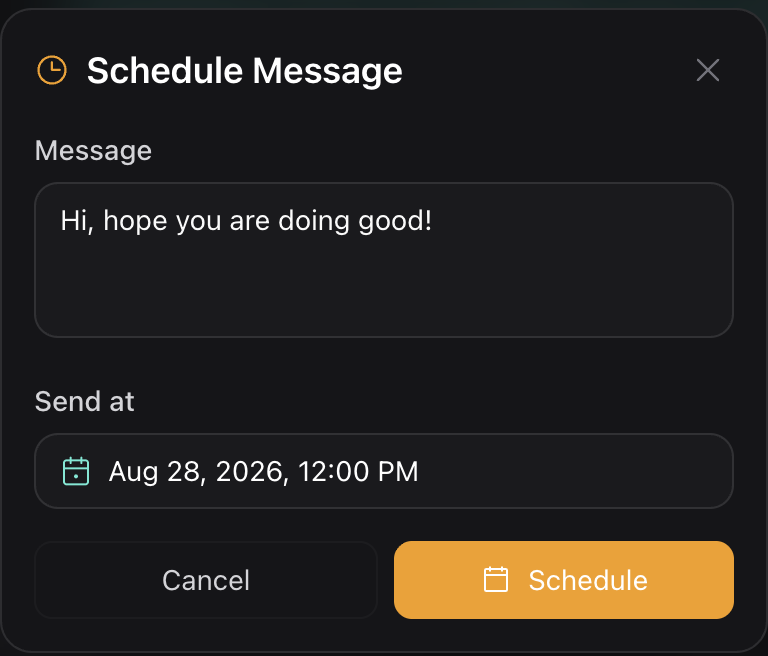
- 3 Review before it sends. Edit or cancel from the scheduled list right up until the moment it is sent.
Tip. You can cancel the message at any point before it is sent.
Set a follow-up reminder on a chat
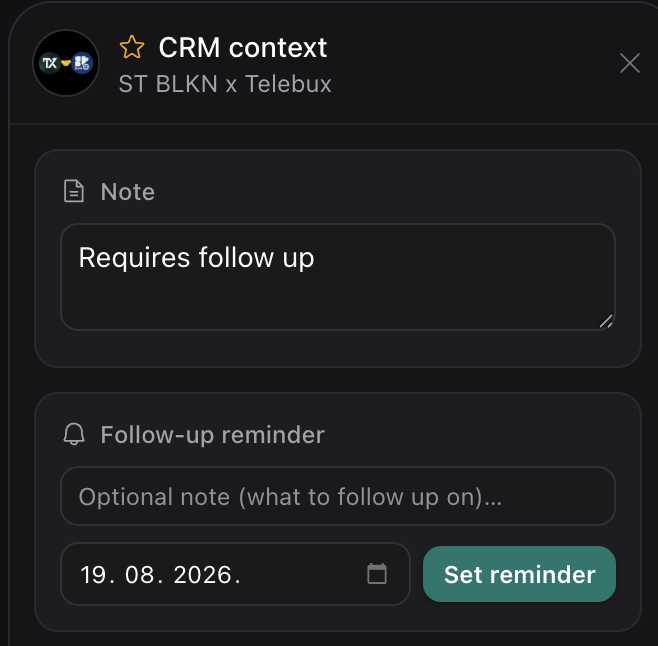
It is easy to lose a warm conversation simply because you forgot to circle back. A follow-up reminder puts a chat back in front of you on a date you choose.
When the day arrives, Telebux adds a reminder to your notifications so the thread does not slip.
- 1 Open the chat. Select the conversation you want to return to.
- 2 Open CRM Panel. Open CRM Panel of that specific chat by clicking "CRM" in the top right corner of the chat.
- 3 Set a date. Add a follow-up reminder and pick the day you want to be nudged.