Tasks and calendar
Keep every follow-up, meeting, and outcome on track, in sync with Google Calendar.
How to create a task
Most lost deals start with a follow-up that never happened. Tasks make sure the next step is written down and tied to the right record.
Tasks make sure the next step is written down and tied to the right record. Every lost deal starts with a forgotten follow-up.
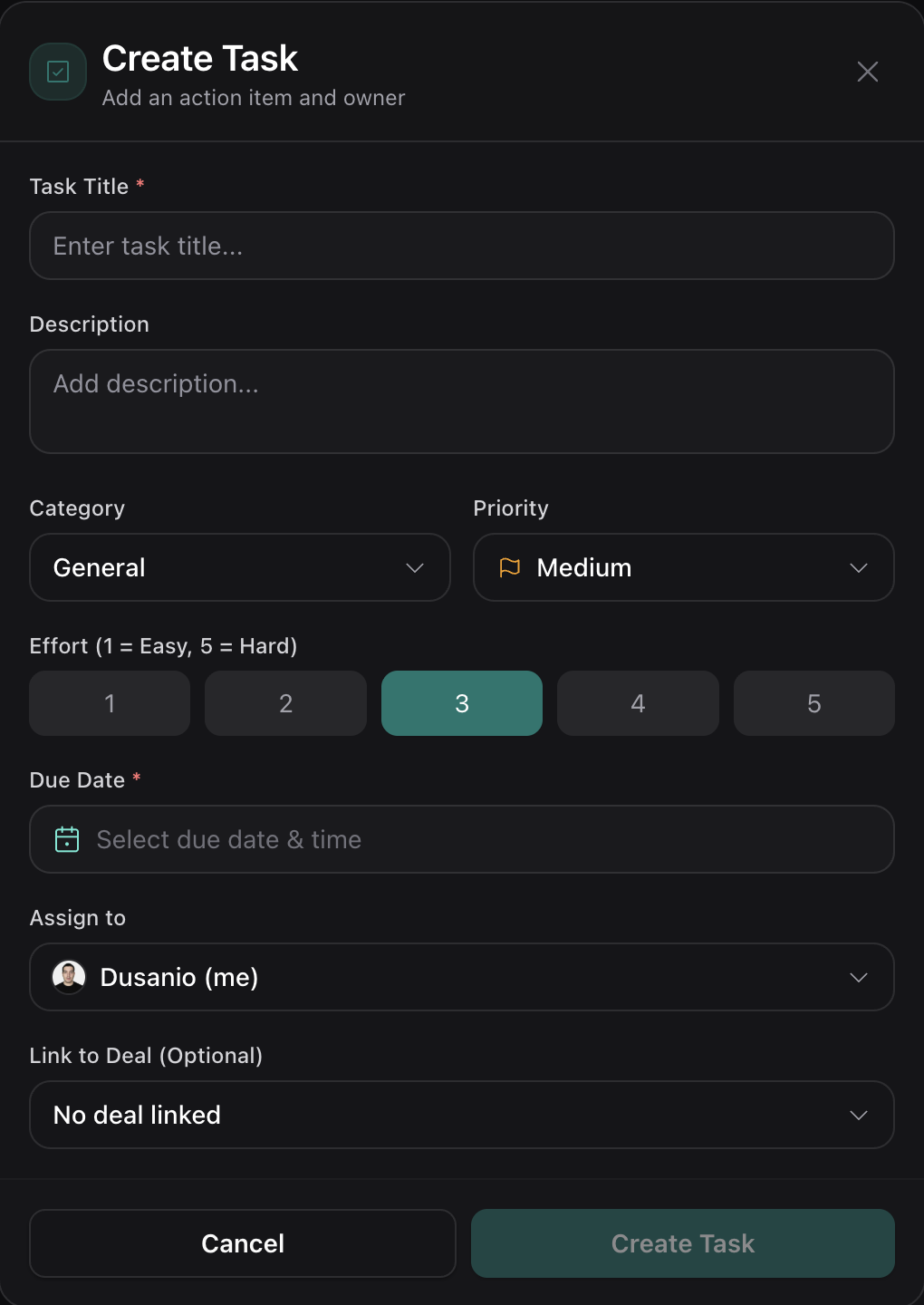
- 1 Create a task. Add a task from the Tasks page or from any record it relates to.
- 2 Set the details. Choose a due date, priority, type, effort, and assignee.
- 3 Filter tasks. Filter by type or due date and check tasks off as you go.
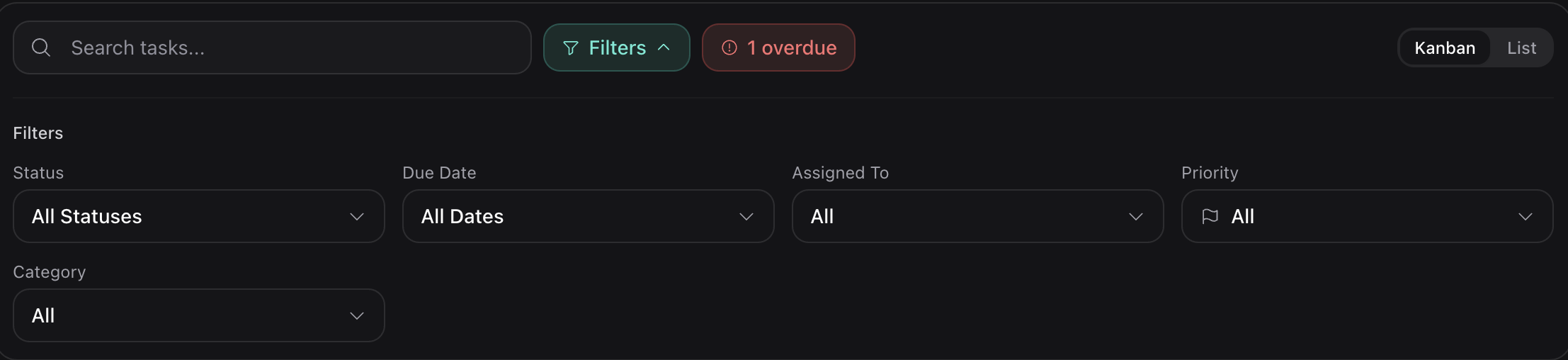
Filter tasks
Calendar and how it works
The calendar keeps your meetings in the same place as your pipeline. View your schedule by day, week, or month, and create events without leaving the CRM. A search box lets you find a specific event quickly.
Sync runs both ways. An event you create in Telebux appears in Google Calendar, and if you reschedule it in Google it updates here. Each team member syncs their own calendar, so personal schedules stay separate.
- 1 Connect Google Calendar. If you have not already, connect Google in Settings.
- 2 Create an event. Create an event and check "Push to Google Calendar" checkbox if you want to create a google event.
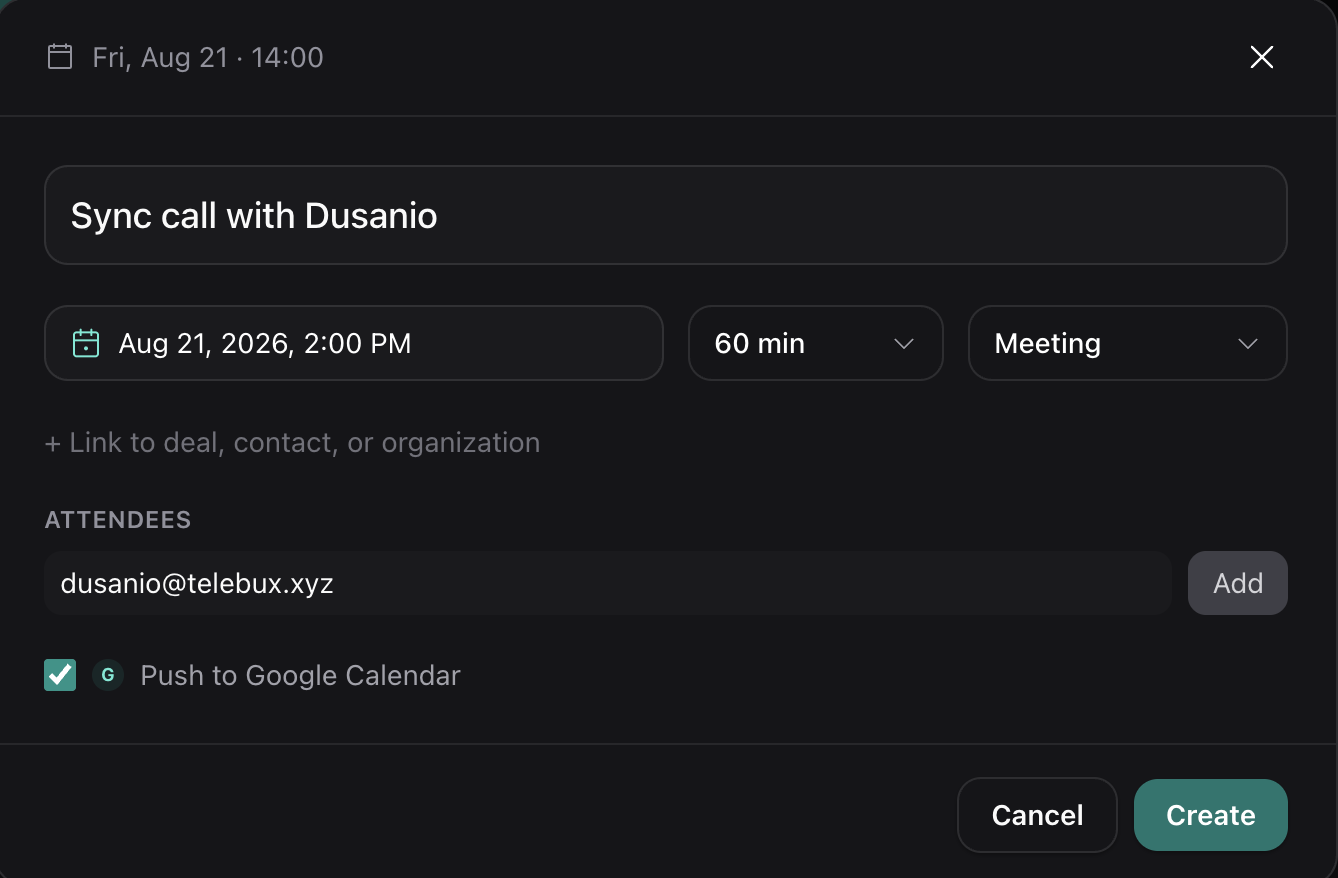
Event creation - 3 Reschedule anywhere. Move the event in Telebux or in Google and both stay in step.
Call notes and outcomes
Every event has a private notes field for the agenda before a call and your takeaways after it. These notes stay yours even on events that came from Google and cannot be edited there, including past meetings, so you always have a place to record what happened.
When a meeting does not take place, mark it as did not happen. The event then shows struck through in the calendar, and the same status carries to the linked deal, organization, and contacts, which keeps your history honest instead of implying a call that never occurred.
- 1 Add notes. Open an event and write in the notes field. Changes save automatically and are visible only to your workspace.
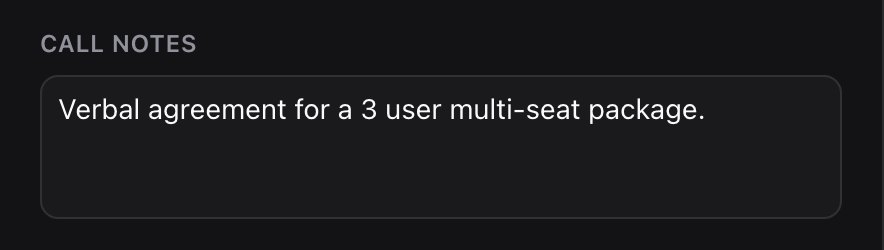
Call notes - 2 Mark an outcome. Tick did not happen on a call that fell through, and it updates everywhere the call is linked.
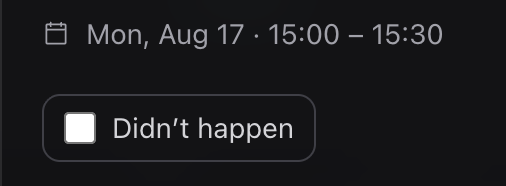
Call outcome
Link calls to deals and contacts
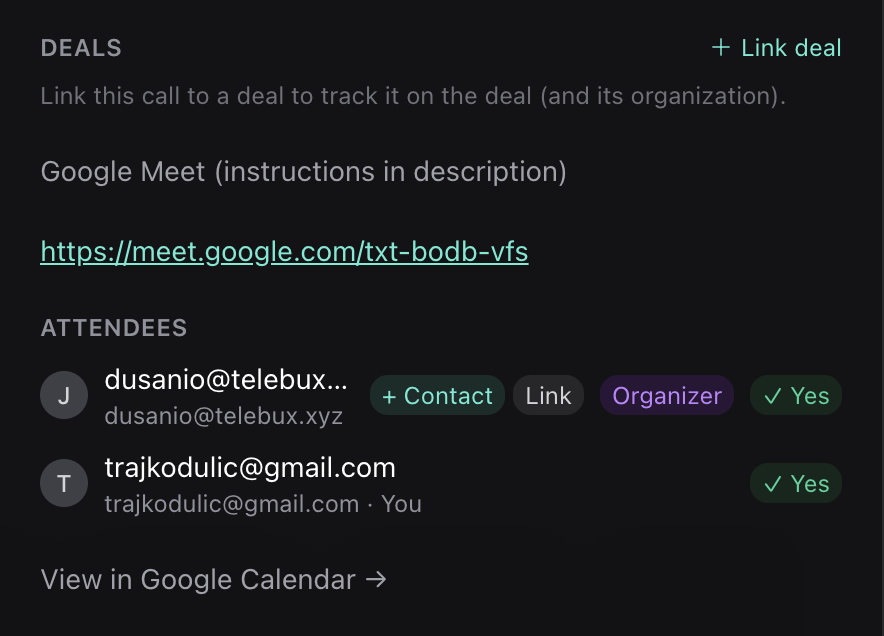
Attaching a call to a deal ties the meeting to the opportunity it belongs to. Link an event from the calendar or from the deal, and once linked the call reflects on the deal, rolls up to the organization, and appears on the contact.
Calls also appear on a contact automatically when the contact's email matches an attendee on the event, so meetings you booked over email show up without extra work.
- 1 Open the event or deal. Start from the calendar event, or from the deal you want to connect it to.
- 2 Link a deal. Link an existing deal to a specific call.
- 3 Create or Link a contact. You can create a new contact directly from a call, which will automatically add the attendee’s email address to the contact. Alternatively, you can link the attendee to an existing contact, which will add their email address to that contact’s existing information.