Building your pipeline
Turn conversations into tracked revenue with leads, contacts, organizations, and deals.
Create a contact
A contact is any person you want to track in Telebux. There are three ways to add one, depending on where you first met them, and however you create a contact it links to the rest of your CRM: their chats, calls, deals, and organization all gather on their page.
Contacts connect through two keys. Their Telegram handle links their chats, and their email links their calendar calls and mail. A contact can have both, which is why you can start with one and add the other later.
- 1 Type their Telegram handle. In Contacts, choose Add contact, type their @username, and search to look it up. Telebux resolves the account and fills in the details, then you save. Best when you know the handle but have not messaged them yet.
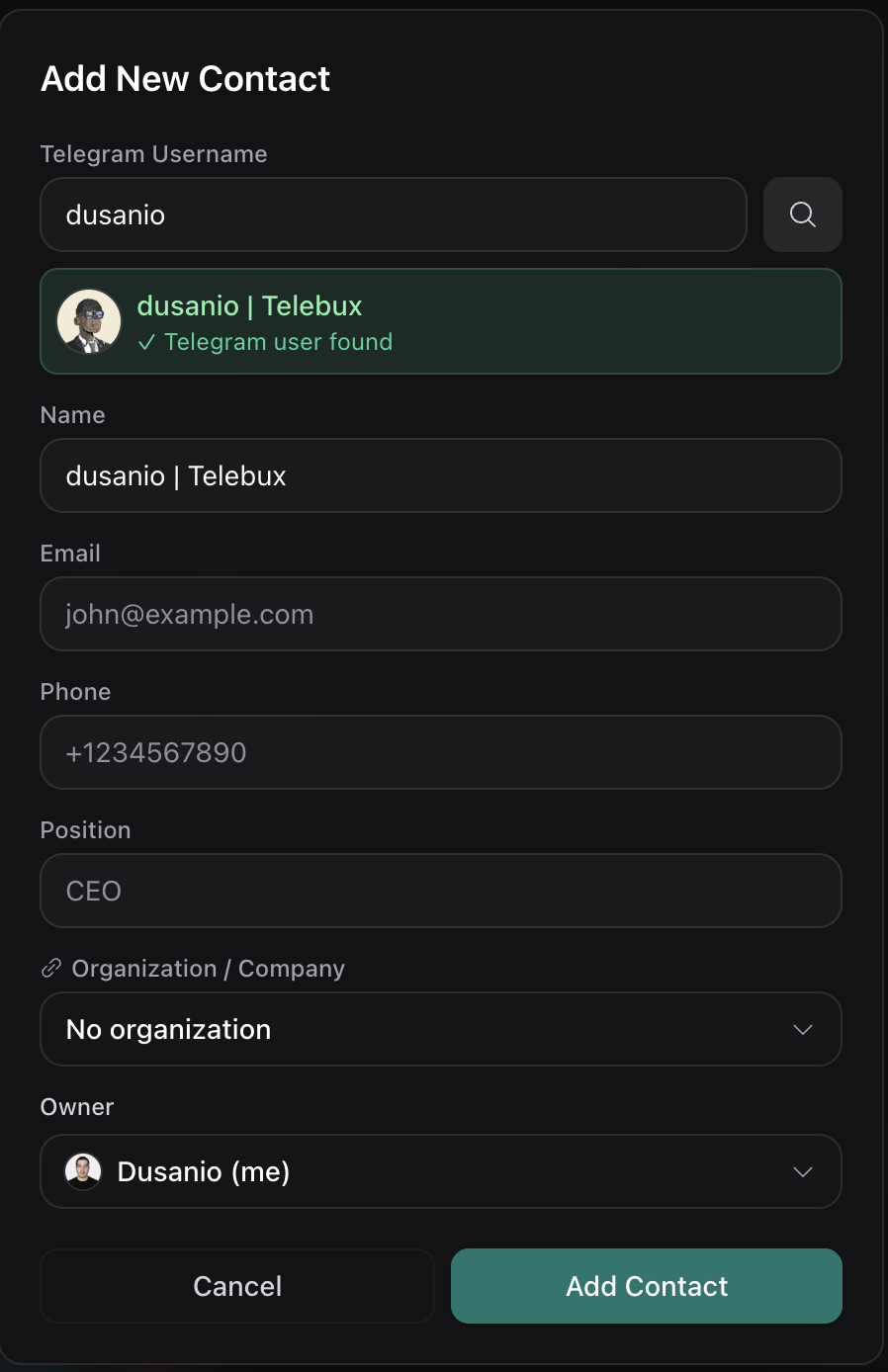
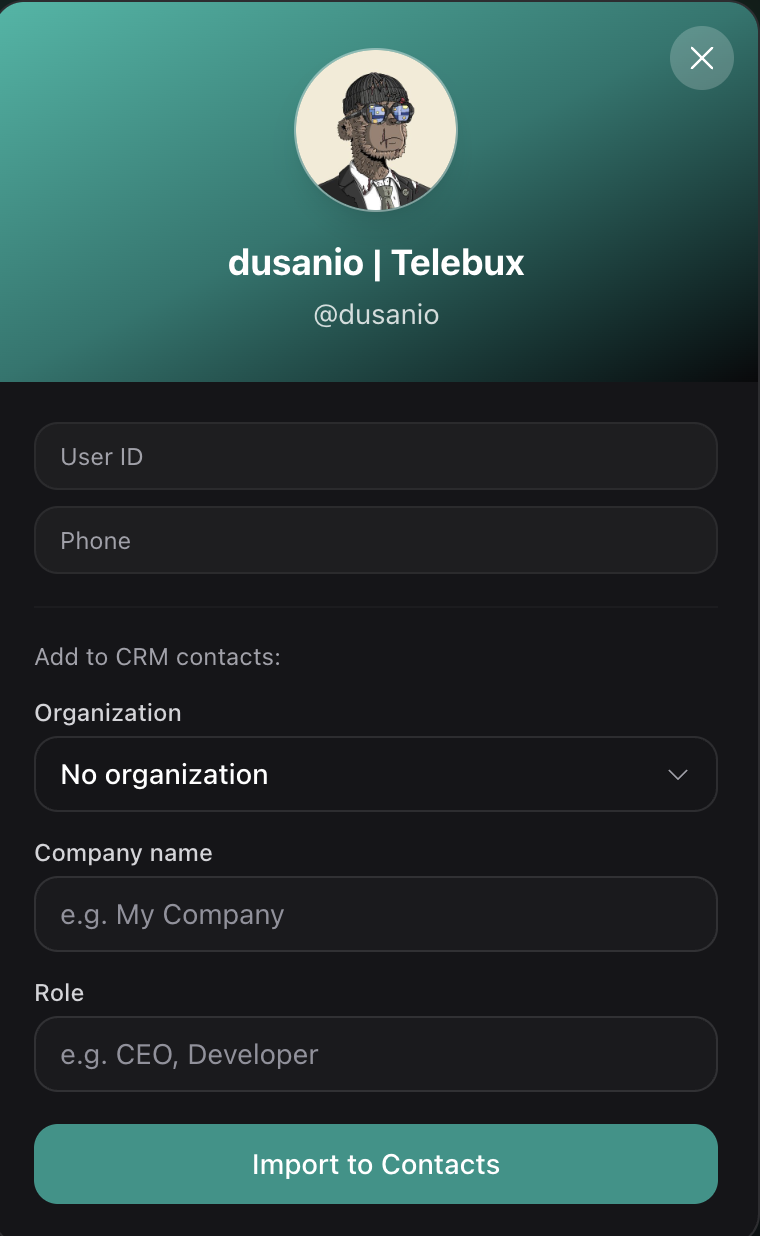
- 2 Import from a chat. Open a direct message or a group, open the person's profile, and import them as a contact, optionally attaching a company, role, and organization. Best when the conversation already lives in your Telegram.
- 3 Import from a calendar event. On a calendar event, next to a Google attendee, choose + Contact to create the contact from their email. Later, open that contact and attach their Telegram handle so their chats and calls sit together. Best when you met over email or a booked call first.

Tip. You can also attach an attendee mail to existing Contact by clicking +Link next to the attendee mail.
Create an organization
An organization is the company view of your pipeline. Deals, contacts, and calls that belong to a company roll up onto its page, so you see the whole account in one place.
- 1 Open Organizations. Go to the Organizations page and choose New organization.
- 2 Enter the details. Give it a name (required), and optionally a website and any other fields. You can also add custom fields you have defined.
- 3 Save. The organization is created and ready to link contacts and deals to.
Tip. You can also create an organization on the fly while converting a chat with Quick Convert, or while linking one to a contact or deal. Attaching an organization to a private chat also links it to that person as a contact automatically.
Create a deal
Deals live on a visual board with the stages you define. You can create one from the pipeline or straight from a conversation.
- 1 Open Deals. Go to the Deals page and choose New deal, or use Quick Convert from a Telegram chat to create one in context.
- 2 Add the basics. Give the deal a title and a value.
- 3 Pick a stage. Choose the pipeline stage it starts in. Drag it between stages later as it progresses.
- 4 Link the context. Link the contact and organization it belongs to so the deal tells the full story.
Tip. Calendar events you link to a deal show up on it, so the record of every meeting sits with the opportunity it moved forward.
Quick Convert
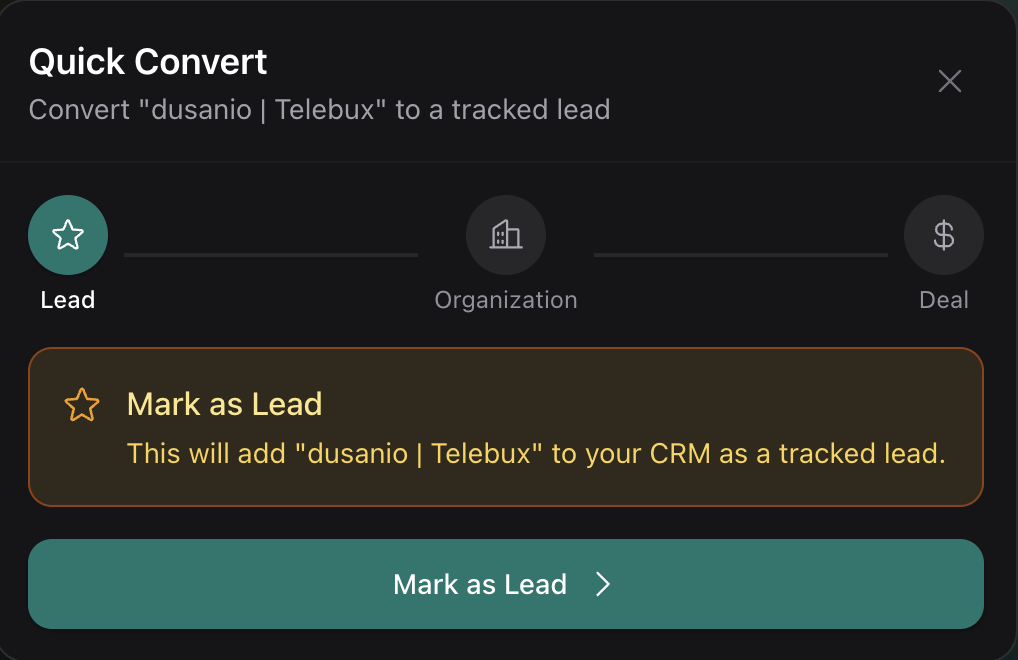
Quick Convert is the fastest way to move a promising conversation into your pipeline. In a single pass it captures the person as a lead, attaches the company, and opens a deal, so nothing is lost to a note you meant to write later.
Everything it creates stays linked, which means opening the deal later shows you the chat, the contact, and the organization together.
- 1 Mark the chat as a lead. Open the conversation and start Quick Convert. The first step adds it to your CRM as a tracked lead.
- 2 Attach the organization. Select an existing company or create a new one on the spot.
- 3 Create the deal. Give the deal a title and a value, and it enters your pipeline at the first stage. You can skip this step if you are not ready to open a deal yet.
How records link to each other
Telebux keeps records connected so context follows you. Open a deal and you see its contacts, organization, and calls; open a contact and you see their chats, deals, and calls.
The main links are: a contact belongs to an organization; a deal links to contacts and organizations; a calendar event links to a deal and to the contacts on the call; and a task links to a lead, contact, deal, or event.
- 1 Link from a record. On any record’s detail page, use the link controls to search for and attach a related record.
- 2 Or convert a chat. Quick Convert links a chat to a lead, an organization, and a deal in one pass.
- 3 Some links are automatic. Attaching an organization to a private chat links it to that contact, a call’s organization is derived from the contacts on it, and calls match a contact by shared email.
Tip. Because records are linked, you rarely need to enter the same information twice. Update it in one place and it shows everywhere it is connected.